

The Best NAS for Most Home Users

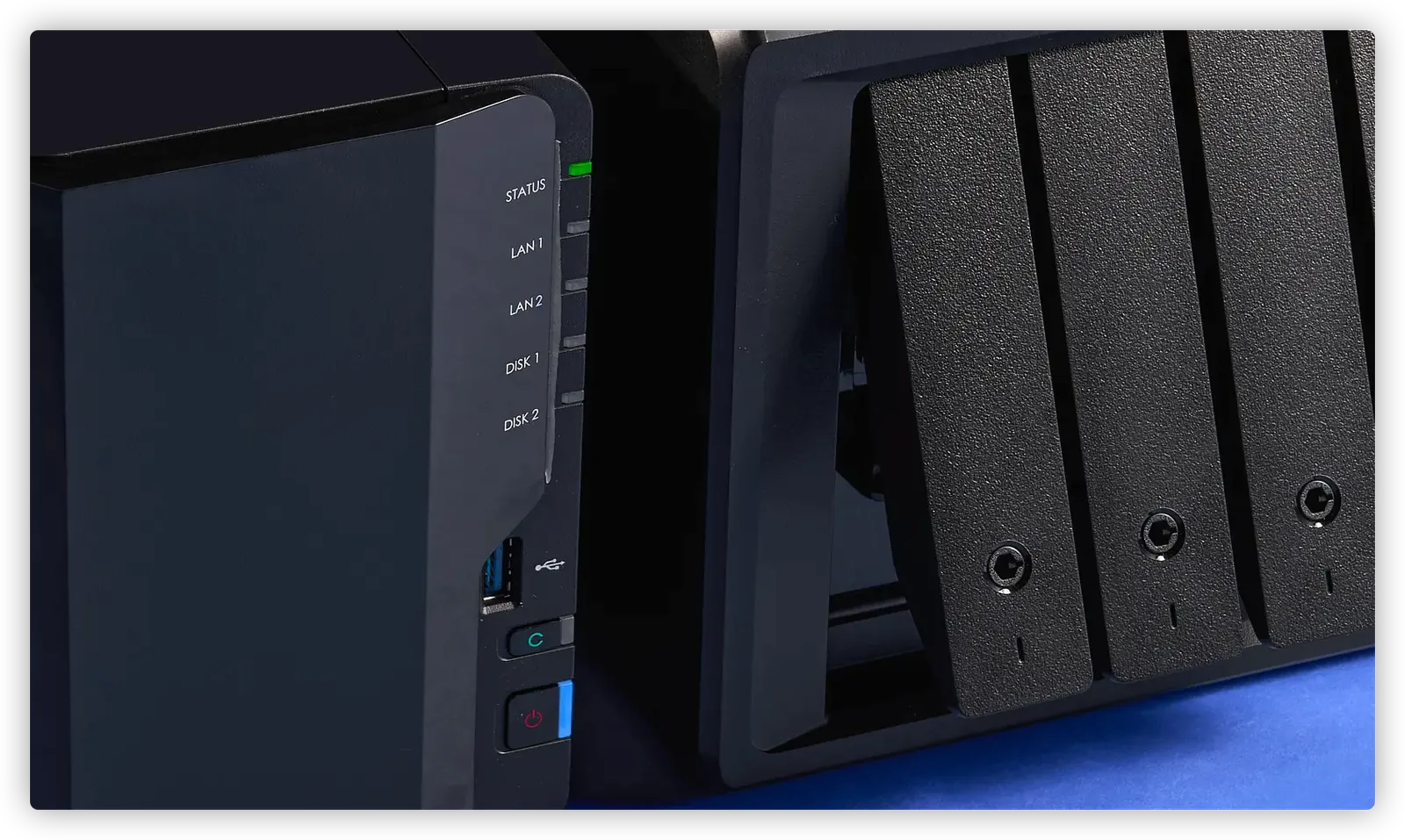
Two network-attached storage devices seated next to each other in front of a blue background.
A network-attached storage (NAS) device can back up all of your computers while always on in the background, saving you the need to find and plug in a portable SSD or external hard drive. It’s also a computer that can sit on your network, letting you offload tasks that would otherwise run unattended on your laptop, Mac, or desktop PC.
After testing six new NAS devices and comparing them against our previous picks, we found that the Synology DiskStation DS225+ is the best home NAS for most people. It’s one of the fastest media servers we’ve tested, has a forward-looking 2.5-gigabit Ethernet port found on new routers for speedy transfers, and comes with software that’s easy to use.
NAS explained
- What is a NAS? Network-attached storage (NAS) is a shared computer that backs up the data from and serves those files back to your phones and PCs.
- A NAS is best for multiple devices Back up documents, photos, and videos from multiple laptops and phones, or create file storage for a business with a few employees.
- If you don’t need a NAS A NAS is overkill if you have just one phone or laptop. In those cases, we recommend online cloud backup services or portable SSDs.
Top pick
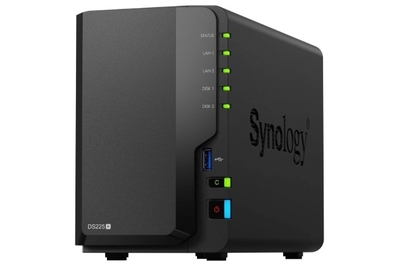
The DS225+ is one of the speediest home NAS we’ve tested, plus its 2.5-gigabit Ethernet port keeps it ready for the future.
The Synology DiskStation DS225+ was equally speedy doling out files and music as it was backing them up from our test laptops, fully taking advantage of newer technology like 2.5-gigabit Ethernet. It’s best for people who have family computers and phones that need to be backed up regularly, as well as file downloaders and folks building a local media library that’s not subject to the whims of streaming media services.
Upgrade pick
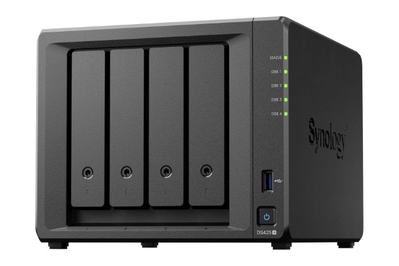
The four-bay DS425+ has the same hardware as our top pick, but it adds two hard drive bays for additional storage, redundant backup, and a bit more speed when serving files.
For video and photo professionals who need expandable storage space or business owners who need a NAS with multiple backups, it’s worth upgrading to the Synology DiskStation DS425+. This model’s two additional bays permit different storage configurations that offer better data protection and performance.
Budget pick
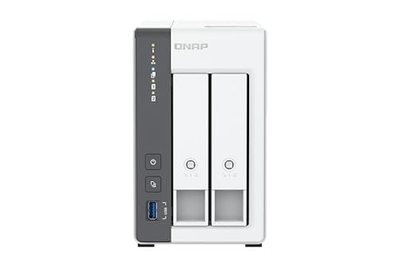
The QNAP TS-216G is a midrange NAS that does all the basics well, but you might hit its limits.
If you primarily need your NAS to be a file- and media-backup system, the QNAP TS-216G does well in that regard. You can extend services such as media streaming and download management, but you’re likely to reach this system’s limits more quickly in comparison with our top pick or upgrade pick.
Why you should trust us
I’m a senior staff writer who has covered storage devices and other interconnected computer hardware for Wirecutter since 2018. In a previous life, I was an IT technician and manager. I have been testing and writing about PCs and networking for over 20 years, reviewing thousands of devices in that time.
For this guide:
- I evaluated over 200 NAS boxes and storage devices for Wirecutter over the past eight years, as well as hundreds more during my time at publications like PCMag.
- I professionally backed up diverse sets of aggregated data, including medical breakthroughs, international news stories, and original Mariah Carey album photos.
- I measured and evaluated the performance of each NAS, its price versus those of its peers, its ability to stay up-to-date over the next five years, and how easy each server is to set up and keep running.
- Like all Wirecutter journalists, I review and test products with complete editorial independence. I’m never made aware of any business implications of my editorial recommendations. Read more about our editorial standards.
- In accordance with Wirecutter standards, I return or donate all products I’ve tested once my assessment of them is complete, which may involve longer-term testing by my colleagues and myself. I never hang on to “freebies” once testing is done.
Who this is for
A network-attached storage device, or NAS, is a small always-on computer generally used for backing up computers and serving files to devices on your local network. It includes at least one, but usually two or more, hard-drive bays, a Linux-based operating system optimized for network storage, and enough CPU power and RAM to do everything it needs to do while using far less power than a repurposed old computer.
While some NAS models come with built-in storage, most do not and are sold diskless. You should expect to purchase additional hard drives, but it also follows that you can tailor your storage to meet your needs and budget.
Unlike a portable SSD or an external hard drive, a NAS with two or more hard drives can provide data redundancy for protection against single or multiple drive failure, copying the contents of one drive over to the other automatically.
A NAS is great if you have a large media library, because you can store your files in one place and stream them locally to computers, phones, tablets, speakers, or media centers throughout your house (or even outside it). A NAS is a useful tool for people who need to store thousands of raw photo files, terabytes of raw video, gigabytes of digital music, or backups of their movie and TV collection.
You should consider a NAS if you have more than one computer at home, since you can back them all up to the NAS rather than connect an external backup drive to each computer. And if you want to protect your data and backups from theft and natural disasters, a good NAS is capable of uploading files directly to a cloud backup service, too.
A NAS is useful if you have too much data to store in Dropbox or Google Drive, or if you don’t trust your data to cloud storage providers.
Most NAS devices can also act as email, database, and virtual private network (VPN) servers. You can use them for BitTorrent, to host CMS, CRM, and e-commerce software, or as DVRs for networked security cameras. A NAS is a computer, so it can do almost anything a Linux computer can do.
How we picked
Since this guide’s original publication in 2011, we’ve surveyed many two- and four-bay NAS from reputable vendors. That includes models from Asustor, Buffalo, Netgear, QNAP, Seagate, Synology, Thecus, Ugreen, WD, and Zyxel. We’ve read professional NAS reviews on CNET, PCMag, PCWorld, SmallNetBuilder, and StorageReview.com, and we’ve also looked at customer reviews on Amazon and Newegg.
When deciding which models to test, we paid attention to key features that most home NAS buyers need:
- Two drive bays: For most home uses, a two-drive NAS protects your data by mirroring the contents of one drive to the other (RAID 1). Single-drive NAS devices provide less data protection, while NAS boxes with more bays offer more complex RAID configurations.
- Price: For home use, we’re searching around $250 to $500 for a two-bay NAS (sans hard drives). More than that, and you’re entering business-class territory. You sacrifice speed and utility on a cheaper model.
- CPU and RAM: We prefer a multicore Intel Celeron or AMD Ryzen processor. We looked for 2 GB of RAM at minimum.
- Easy-to-use software: The best examples work like Windows or MacOS, so they should be familiar to computer users. The worst are clunky, like the configuration screens of early 2000s routers.
- Wide support for backups: A NAS should support computer backups on Windows, Macs, and Android or iPhones. It should also allow you to back up easily to a cloud storage service like Backblaze or iDrive.
- Media-streaming capabilities: NAS boxes can stream videos and music to various devices in your home. You can do this using software from the manufacturer or third-party programs like Plex.
- At least two USB ports: Between backups, dongles, and other accessories, it’s nice to have at least two USB ports on a NAS.
- Third-party application support: If you want to add features or services to your NAS, you need to do that with third-party software — including media center software, web-server software, analytics, and more.
- Warranty and support: The models we tested come with two- or three-year warranties. They also offer tech support via phone, email, online knowledge bases, and forums. Tutorials and videos are accessible on their websites.
How we tested
We set up each NAS while looking at the web interface’s organization and features. We tested ease of use by configuring user and group accounts, as well as file and folder access permissions. We checked to see if the NAS offered secure remote access via Android and iOS mobile apps or the web. We inspected each NAS for drive trays or slots that make the drives easy to remove while still fitting tightly and securely.
The easiest way to measure real-world NAS performance, at least for how a home NAS is typically used, is to copy files to and from the NAS and calculate the data rate. Since 2015, we’ve run read-and-write tests the simplest way we can: by copying files over Ethernet and measuring the elapsed time. This round, as none of our picks came with pre-installed storage, we installed two or four 3.5-inch hard drives in each NAS as needed, connected each model via 2.5-gigabit Ethernet to a router with 2.5-gigabit Ethernet ports, and connected a PC with a 2.5-gigabit USB-to-Ethernet adapter to the router. We used Windows’ built-in Robocopy file-copying tool to read and write two folders to each NAS: a 32 GB music folder with 6,154 MP3 files, as well as a folder with an 8.1 GB MKV video file and a 7.07 GB Linux ISO file.
Top pick: Synology DiskStation DS225+

Ruthie Darling/NYT Wirecutter
Top pick
The DS225+ is one of the speediest home NAS we’ve tested, plus its 2.5-gigabit Ethernet port keeps it ready for the future.
The Synology DiskStation DS225+ is the two-bay NAS we recommend for use at home. In addition to its role as a base station for all your family’s file and photo backups, its ability to stream and serve media files like music and videos is among the fastest of any NAS we’ve tested.
It includes a powerful processor, hardware-level encryption, and a flexible and easy-to-understand interface with a wide variety of third-party apps. The NAS supports media playback through its own apps or Plex Media Server, can be equipped with dual hard drives that help save your data, has two USB ports (including one on the front), and supports features Wirecutter readers have asked about, such as VPN server capabilities, security camera support, and UPS (uninterruptible power supply) compatibility.
It supports extra-speedy 2.5 gigabit network speeds. The DS225+’s 2.5 GbE (gigabit Ethernet) port will keep it fast for a while. All of the Wi-Fi 7 routers we recommend come with 2.5 GbE ports, which are capable of up to twice the speed of one gigabit Ethernet ports found on older routers and NAS boxes.
It has a powerful processor and upgradable memory. The DS225+ has a modern quad-core 2.0 GHz Intel Celeron processor and 2 GB of RAM, upgradeable to 6 GB. The extra speed and RAM are useful when copying lots of files, streaming videos, or performing multiple backups simultaneously. The DS225+’s upgradeable memory gives it extra overhead compared with the QNAP TS-216G, our current budget pick.
Synology NAS can be more flexible during setup. You can initialize the Synology’s hard drives to ext4 or SHR+btrfs format. Ext4 is the widely used drive format standard used by most NAS manufacturers including QNAP and Synology, which has the potential to be slightly faster than btrfs. However, btrfs format in conjunction with SHR (Synology Hybrid RAID) supports snapshots (which can help preserve more versions of file backups), and SHR supports different capacity hard drives in the DS225+ and other Synology NAS boxes so you aren’t limited to upgrading your drives by identical pairs in the future.
NAS file-transfer test speeds in MB/s (higher is better)

A chart illustrating the comparisons in speed of each NAS tested as they served and backed up music and other files.
The DS225+ is a fast server and an excellent backup device. The Synology two-bay NAS was equally as fast when transferring files from its storage to a waiting laptop or when backing up those same files from the laptop. It topped our charts with speeds of over 128 megabytes per second (MB/s) while copying over 6,100 music files in about 4 minutes, and 180 MB/s when sending 15 GB of large files to the laptop in about a minute and a half. Speed is critical when serving or streaming files: Like when downloading files from the internet, a slow copy to your laptop can be agonizing. More notably, the DS225+ was able to back up large files and tiny files from the laptop between 124 and 172 MB/s, so you’ll spend less time waiting for backups to complete. While similar to our former top pick, the QNAP TS-264, while serving files and music to the laptop, the DS225+ was 4 to 5 times faster when we backed files and music up from the laptop to the NAS. We attribute the Synology DS225+’s speed to its 2.5-GbE port and its speedy quad-core Celeron processor.
Administering the server is easy if you’re familiar with Windows. Synology’s DSM operating system looks like Microsoft Windows, and it lets you configure the server using familiar icons and window panes. Basic setup is guided: Just follow a few setup screens, and you’ll have the NAS operating on your network in 15 minutes to an hour.
You can do a lot from your phone. If you download Synology’s apps like DS Finder or Synology Photos and sign in using a Synology cloud account, you can check if the NAS is running out of storage space, reboot it remotely, and monitor use. You can also back up files and photos from your phone to the NAS, freeing space to take more photos and videos.

The ports on the back of the DS225+.
Synology provides easy access to many applications you can run on your NAS. They download from Package Center, which is like the app store on your phone. Some of the more popular apps are Plex for media streaming, Apache and Python for web development, and Download Station for connections to online file services.
Flaws but not dealbreakers
Synology has only certified its branded drives as “compatible.” Prior to October 2025, Synology had deemed third-party drives like WD Red NAS hard drives as “incompatible.” However, after that date, the latest and future versions of Synology’s operating system (DSM 7.3) supports third-party drives, including those from Seagate and Western Digital. To that end, we tested the DS225+ and DS425+ with both Synology-certified drives and WD Red Plus NAS drives, with identical setup experiences and similar test results.
The drive bays aren’t lockable. The DS225+ has simple slide-in drive trays, which can’t be locked for security. More expensive options from Synology, like the DS425+, DS725+, and DS925+, have more robust drive bays with a key lock. These locks aren’t high security by any means, but they should keep wandering fingers from popping a spinning drive out inadvertently, and we wish the DS225+ included this option.
It has relatively limited connections. The DS225+ has only one 2.5 GbE port, and its second Ethernet port handles only slower, 1-gigabit speeds. This NAS also lacks an HDMI port, so you can’t connect it to a TV as a web-browsing computer or use it as a video set-top box.
The DS225+’s memory upgrades are limited. It comes with 2 GB of memory, which you can triple to 6 GB. Folks who want to upgrade beyond that for their business needs should look at the Synology DS725+ or DS925+, both of which can be upgraded to 32 GB.
Virtual machines are supported but only to a point. Some technical-minded folks will want to offload functions from their primary PC to a side server like the DS225+. The NAS supports up to two virtual machines (VM) running simultaneously. These VMs act like independent Linux or Windows PCs running on the NAS, which can be dedicated to functions like downloading and transcoding 4K video files, or running a personal VPN, a security system (firewall), or a test web server for your projects. Folks who want more capability beyond file sharing and a few server-side apps for their business or homelab should look at the Synology DS725+ or DS925+.
Upgrade pick: Synology DiskStation DS425+

Ruthie Darling/NYT Wirecutter
Upgrade pick
The four-bay DS425+ has the same hardware as our top pick, but it adds two hard drive bays for additional storage, redundant backup, and a bit more speed when serving files.
A two-bay NAS is the best option for most people who want to use theirs for home backup, but if you need more storage space with additional file protection for your business records, get the four-bay Synology DiskStation DS425+. It has the same processor and memory as the DS225+, but with two more drive bays. Like our pick, the DS425+ is sold diskless. In our tests, it was measurably faster than the DS225+ and edged past more expensive NAS boxes like the Synology DS925+ on three out of our four performance tests.
It gives you more storage options. You can opt for RAID 5, 6, or 10; those data-storage configurations require three or more disks but provide better data protection and can offer better performance. Like the DS225+, the DS425+ supports SHR for more flexibility with which hard drives you install, while still keeping the data integrity and drive failure protections that other RAID configurations give you. A four-bay NAS also lets you expand your storage capacity more easily since you can start with two drives and add more as needed, whereas the primary way to expand the storage space on a two-bay NAS is to replace first one drive and then the other with higher-capacity drives.
The extra storage space will come in handy if you’re looking to run more server-side apps on the NAS, such as if you’re a heavy downloader and you need to simultaneously run a Plex media server or record video and sound from multiple security cameras.

The DS425+ with its hard drive ports opened.
Flaws but not dealbreakers
The memory upgrades for the DS425+ top out at 6 GB. You can triple the memory of the DS425+ to 6 GB, though that’s still short of the 32 GB offered by Synology’s DS925+. This should be sufficient for file sharing, laptop and phone backups, and running a local media server, however.
Synology has only certified its branded drives as “compatible.” As with the DS225+, only Synology-branded hard drives are on the company’s official hard drive list. Synology has stated that it eventually will add third-party drives to its certified list. We have tested their NAS boxes with third-party drives like the WD Red Plus NAS drives, and they perform similarly to the Synology-labeled drives.
Its VM support isn’t as robust as its big brother. The DS425+ is capable of running just two VM instances simultaneously, like the DS225+. If you want a server for your omega-level home lab, then we’d recommend the DS925+, which can handle eight.
It has relatively limited connections. The DS425+ has only one 2.5 GbE port, and its second Ethernet port handles 1-gigabit speeds. More expensive servers will have two 2.5 GbE ports, but home and home-office users are less likely to use both ports simultaneously. This NAS also lacks an HDMI port, so you can’t connect it to a TV as a web-browsing computer or use it as a video set-top box.
Budget pick: QNAP TS-216G

Michael Hession/NYT Wirecutter
Budget pick
The QNAP TS-216G is a midrange NAS that does all the basics well, but you might hit its limits.
The QNAP TS-216G is a more basic NAS that can provide protected data backups for your household. It forgoes some of the Synology DS225+’s niceties to save some money, which you could apply toward buying larger-capacity drives or just keep in your wallet.
It comes with lockable drive sleds. Like the Synology DS425+, the TS-216G has drive carriers that are more exposed than those of the Synology DS225+, TS-264, and TS-464, which have removable drive covers that lack locks. To protect the drives from prying fingers, you can lock the TS-216G’s beefier drive sleds with an included key.

The TS-216G has one 2.5 GbE port, one Gigabit Ethernet port, and two USB ports on the back. Michael Hession/NYT Wirecutter
It’s speedy when backing up files. The TS-216G was faster than both our top pick and upgrade pick when backing up our large, multi-gig files and thousands of music files. However, the TS-264 and TS-464 were significantly faster when reading those same files back to the laptop, so we recommend one of those more expensive options if you’re creating a file and media server.
It’s significantly less expensive than our top pick. As of February 2026, the TS-216G is about $100 less expensive than our top pick. That keeps more money in your pocket, which you then might want to use for larger-capacity hard drives (like our other picks, the TS-216G doesn’t come with included storage).
Flaws but not dealbreakers
You can’t upgrade its memory. The TS-216G is limited to 4 GB of system memory, which caps the number of programs or virtual machines you can run on the NAS simultaneously. That said, 4 GB is certainly enough to run a download manager in addition to basic file and media services.
It has relatively limited connections. Our budget pick has only one 2.5 GbE port, and its second Ethernet port handles only slower, 1-gigabit speeds. This NAS also lacks an HDMI port, so you can’t connect it to a TV as a web-browsing computer or use it as a video set-top box.
Other NAS devices worth considering
If you’re running a business in your home: If you need a NAS for your home office running server apps, the Synology DiskStation DS725+ and DiskStation DS925+ are solid choices in the two-bay and four-bay NAS category. Both support upgrading to 32 GB of RAM, which is beneficial if you plan to run multiple apps and virtual machines on your NAS. They also have slots for additional NVMe SSD drives to help speed up performance, but right now these SSDs are extremely expensive, so they’re not a must-have for this year. The Synology NAS boxes also have sturdy, lockable sleds in their drive bays, which helps if you need to swap out worn or outdated drives for new ones. They’re about $100 to $200 more expensive than our picks, but they could be worth it if you’re planning on running lots of apps on your NAS simultaneously.
If you need a simple backup option: The Synology Beestation is a NAS that includes a 4 TB hard drive for storage and a simplified set of features. Think of it as a replacement for cloud-based phone- and laptop-syncing platforms such as iCloud or Google Drive. It’s fast enough for a family’s use, but it can’t run multiple programs like our picks can. It also employs just a single drive, so it can’t save you from drive failure like our picks with RAID protections. But if all you need is a way to back up your phones and laptops without having to pay for a subscription, the Beestation becomes more attractive. The Synology Beestation Plus adds double the storage and a processor capable of running Plex server enhancements like hardware transcoding, but it is almost double the price as well.
What to look forward to
Faster Ethernet ports are becoming commonplace on routers that support speeds of 2.5, 5, or 10 gigabits per second. This is a significant improvement over the 1 gigabit Ethernet ports common to older routers and servers. When you decide to update your network to support faster network speeds, make sure to check your router for 2.5 GbE or 10 GbE LAN (local network) ports.
We’ve recently looked at SSD-only NAS boxes like the Asustor Flashstor 6 and QNAP TBS-464-8G, and considered the ability to add M.2 NVMe SSDs to the tested Synology DiskStation DS725+ and DiskStation DS925+. However, SSD-only NAS (and the internal SSDs you’d have to buy to populate them) are too expensive for most people. Each internal 4 TB SSD is approaching $700 as we write this guide, and for the same amount of money you can purchase 32 TB Seagate Iron Wolf Pro hard drives for eight times the storage, or save a wallet full of money buying a more reasonably sized set of hard drives. Installing SSDs in a NAS instead of spinning hard drives will be quieter and potentially faster with multi-gig Ethernet connections, but we’re holding off testing and recommending these solutions until prices on SSDs become more economical.
The competition
Both Synology and QNAP sell many, many NAS devices, all of which run the same software but vary in processor type and speed, RAM, number of drive bays, and features. Our picks offer the best combination of performance, features, and price for most home uses, and Synology’s and QNAP’s respective software offerings are more powerful and polished than those of other NAS makers.
The QNAP TS-264-8G and QNAP TS-464 were our former top pick and upgrade pick, respectively. Both were outperformed by our new picks on file transfers, particularly when saving large files and small music files to the respective NAS’s storage. Both are still recommended if you need a NAS with HDMI output for a quasi-PC experience or if you want to use the NAS as a media server playing back video on a TV.
We tested the Ugreen NASync DH2300 and compared it with our budget two-bay NAS pick and the Synology BeeStations. While the Ugreen NAS is cheaper than our budget pick by more than $50, the Ugreen device requires an included screwdriver to install hard drives, while the QNAP is tool-less and quite a bit easier to install. The Ugreen NAS is also limited to a single 1-gigabit Ethernet port, while the QNAP TS-216G has a 2.5 GbE port, and subsequently the QNAP tested measurably faster than the Ugreen DH2300 on our file transfer tests.
We tested the QNAP HS-264 because its slim horizontal body, dual HDMI ports, and fanless operation looked attractive. It will fit well in a studio apartment or in your living room. While it was fast across the board, the top surface of the NAS became hot during operation. It also required a screwdriver to install hard drives, so it’s not as quick to set up as our pick. Consider it if you’re a cinephile who wants to watch movies directly from the NAS and if you need a media server to store your 1080p and 4K video file collection.